

Guide updated October 1, 2026 · By the ModulePilot team · 9 min read
A recycling fee on headphones, reinforced packaging for a bottle of wine, a preparation fee for a made-to-order item… Sooner or later, every PrestaShop store needs to charge an amount that isn't really part of the product price. That's where the trouble starts: PrestaShop has no built-in "additional fees" feature. Every merchant works around it in their own way (inflated prices, hijacked shipping costs, lines added by hand), with consequences for margins, VAT and customer trust.
This guide compares the five possible methods, shows their real limitations (we checked them in the PrestaShop source code) and helps you pick the right one for your store.
In short: which method for which fee?
- A small, stable fee nobody asks you to justify: build it into the product price.
- A product-related shipping surcharge (heavy or bulky parcel): the native "Additional shipping costs" field.
- An eco-fee on a handful of products: PrestaShop's native ecotax may be enough.
- Recurring fees on many products that customers must clearly see: an automatic fee module.
What kind of extra fees do online stores charge?
We're talking about fees triggered by a product, not by the delivery address or the carrier. That's what sets them apart from shipping costs, and it's why shipping tools handle them so poorly.
| Type | Examples | Usually charged |
|---|---|---|
| Regulatory and environmental | Recycling and eco-fees (for example France's eco-participation on electronics and furniture) | Per item |
| Logistics | Reinforced packaging, fragile item protection, bulky item handling, insulated packaging | Per item or per order |
| Preparation and service | Special preparation, cutting to size, assembly, personalization, admin fee | Per order or per item |
| Product range specific | Service fee applied to a specific product family | Depends |
Keep the last column in mind: some fees are charged per unit (two TVs, two recycling fees), others once per order (one special preparation, however many items). Not every method can handle both.
Method 1: build the fee into the product price
This is the default option: you raise the selling price by the amount of the fee and move on.
What works: zero configuration, compatible with every theme and module, and the customer sees a single final price.
What doesn't:
- The fee becomes invisible. Customers don't know they're paying for reinforced packaging or a recycling contribution; they just see a product that costs more than at your competitor's.
- Every change means editing every product page. New eco-fee rates, pricier boxes: time for a product-by-product update (or a CSV import).
- Your accounting can no longer separate the fee from product revenue.
- It's not an option for fees that must be shown separately. In France, the eco-participation on electronics and furniture must be displayed distinctly from the price (see our guide to eco-participation for online stores).
- No per-order fees: a unit price can't carry a cost that should be paid only once.
Best for: a small, stable fee, identical on every item concerned, that you don't need to explain.
Method 2: the native "Additional shipping costs" field
In the Shipping tab of each product page, PrestaShop offers an "Additional shipping costs" field. Many merchants use it to slip in a packaging or handling fee. We checked how it behaves in the PrestaShop source code (cart shipping cost calculation):
- the amount is multiplied by the quantity ordered;
- it's merged into the shipping price: no separate line, no explanation, the customer simply sees more expensive shipping;
- it's taxed at the carrier's VAT rate, not the product's;
- it disappears when the carrier is free or when the free shipping threshold (by amount or weight) is reached. A free shipping voucher cancels it too.
In other words, your packaging fee vanishes exactly when you offer free shipping, which means on your largest orders.
Best for: a genuine shipping surcharge (heavy or oversized parcel) in a store that never offers free shipping.
Method 3: PrestaShop's native ecotax
PrestaShop includes ecotax management (its name for recycling eco-fees). You enable it under International > Taxes, then enter the amount on each product page. The amount is included in the price, and many themes display an "including ecotax" mention.
What works: it's native, free and suited to a simple catalog.
What doesn't:
- One use only: eco-fees. You can't use it for a packaging or preparation fee.
- Product-by-product entry, combination by combination, to redo every time the rates change.
- A single tax rule for all ecotax in the store, set globally.
- Display depends on your theme, and merchants regularly report calculation discrepancies on invoices in some configurations.
Best for: an eco-fee on a small number of products, with amounts that rarely change.
Method 4: a "fee" product the customer adds to the cart
Another common trick: create a product called "Reinforced packaging – €4.90", offer it as an accessory, or add it to orders yourself from the back office.
The problem is that everything depends on the customer's goodwill (or on your own attention). They forget to add it, remove it, pick the wrong quantity; the "fee" product shows up in your catalog and search results; and every manual addition in the back office costs you time and mistakes. Nothing links the fee to the product that justifies it.
Best for: a truly optional extra, such as gift wrapping. Be careful: in the EU, a paid option must be actively chosen by the customer and can't be pre-selected (Consumer Rights Directive 2011/83/EU, art. 22).
Method 5: an automatic additional fees module
The idea is simple: you define a rule ("this fee applies to these products") and the module does the rest. As soon as a matching product lands in the cart, the fee line is added. If the customer changes the quantity, the fee follows. If they remove the product, the fee disappears.
That's exactly what our Automatic additional product fees module does. In practice:
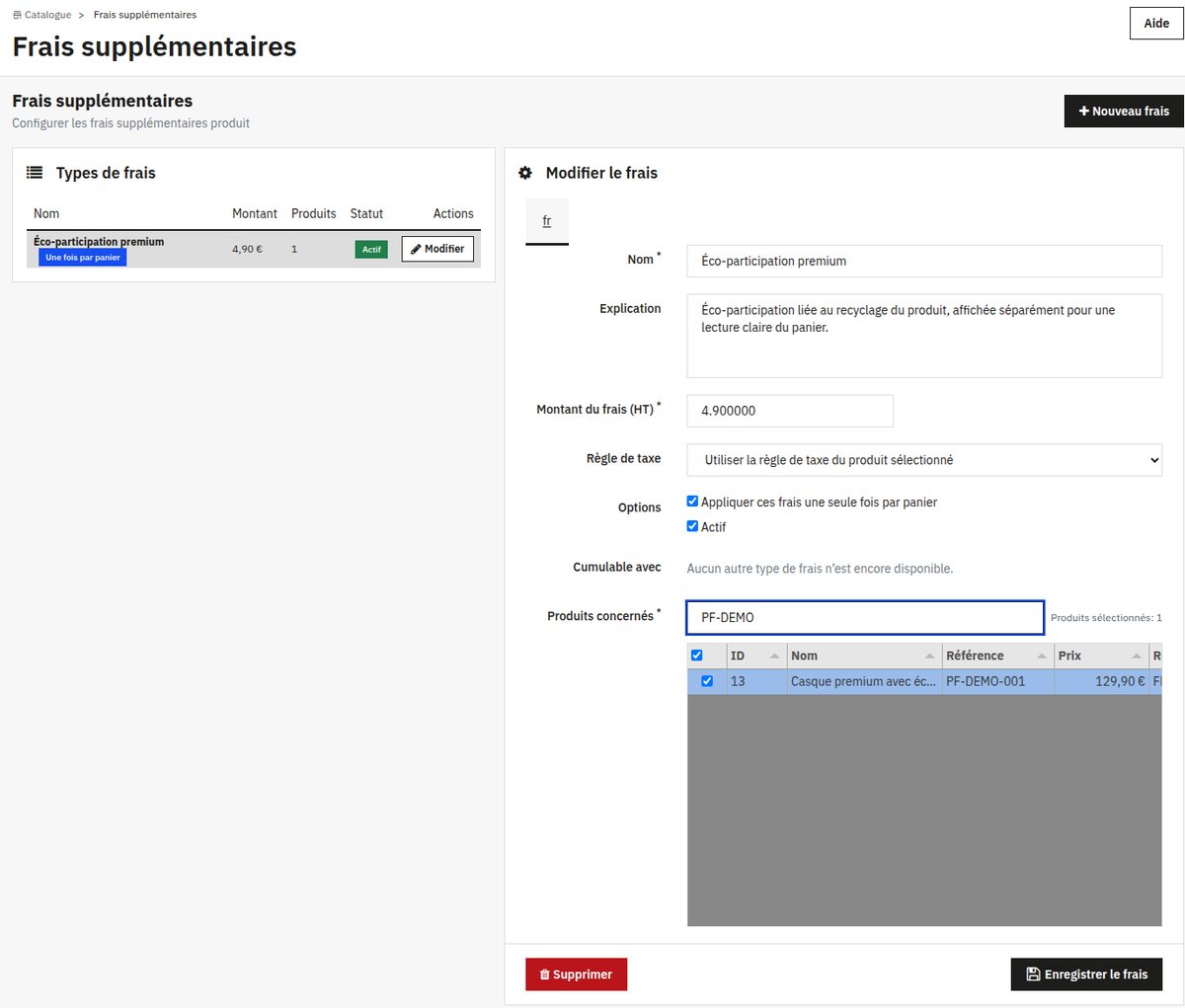 A fee type is created from Catalog > Additional fees: amount, tax, options and products concerned on a single screen.
- A dedicated menu under Catalog > Additional fees, where you create as many fee types as you need (eco-fee, packaging, preparation…).
- Multi-product selection in a filterable table (name, reference, brand or manufacturer): tick the products concerned, even dozens at a time.
- A tax-excluded amount, with either the tax rule of the product concerned (recommended: the fee automatically gets the same VAT rate as the product) or a fixed tax rule.
- Per item or once per cart: by default, the fee follows the quantity (two products, two fees); tick one box to apply it only once per order.
- Stacking rules: you decide which fees can add up on the same product (for example eco-fee + handling); the others don't stack.
On the storefront, the fee is announced before purchase: a block on the product page shows its name, amount and the explanation you wrote.
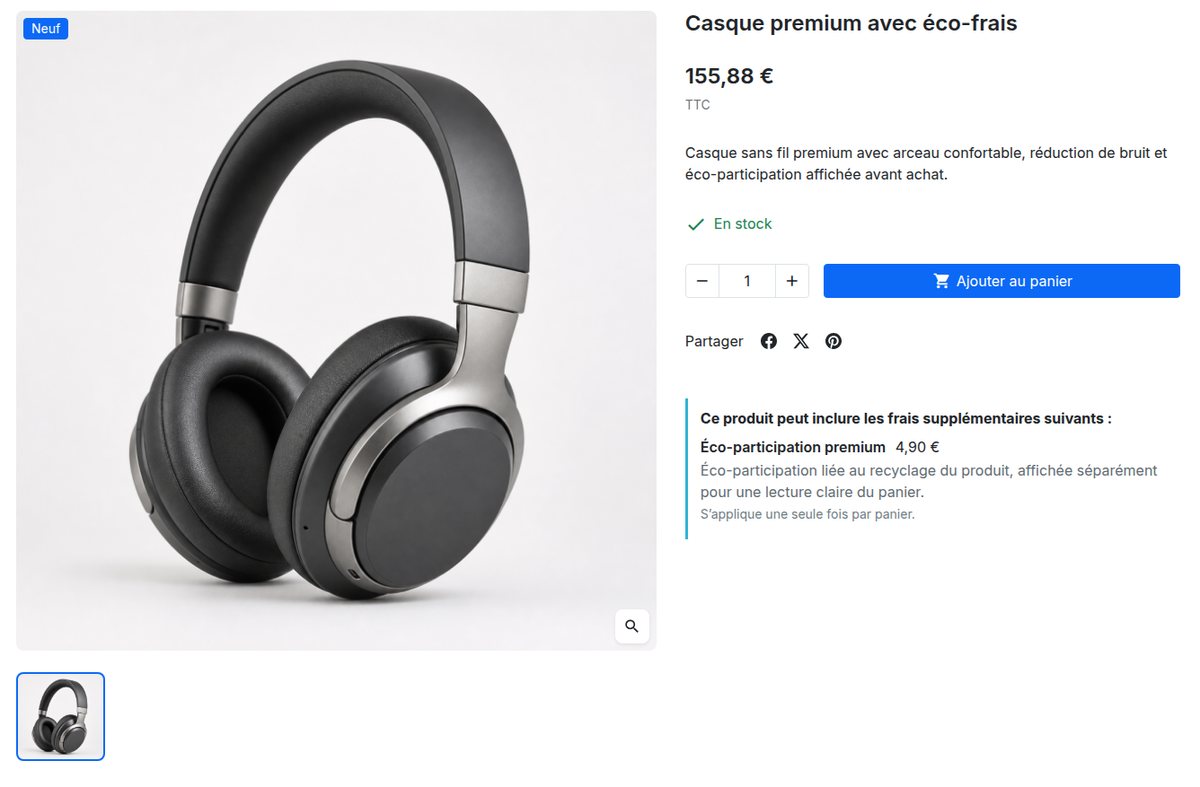 The fee is presented on the product page, before the customer adds the product to the cart (demo store in French).
In the cart, it appears on its own line, with its explanation and the name of the product that triggers it. The customer can't remove it or change its quantity: it automatically follows the product concerned.
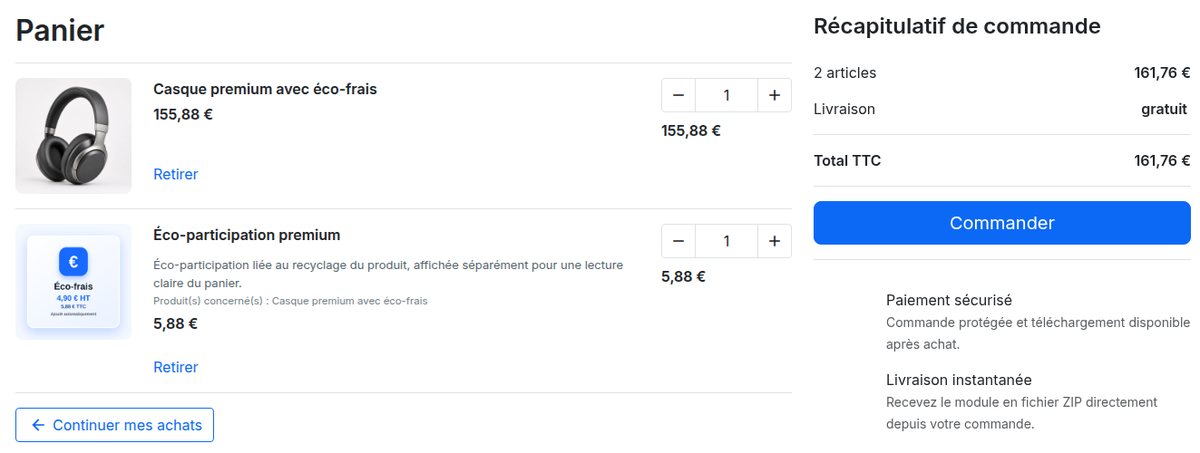 In the cart, a clear line linked to the product that triggers it.
Under the hood, each fee is carried by a hidden technical product (invisible in the catalog and search). As a result, it appears as a real line in the order, on the invoice and in your exports, and PrestaShop itself calculates the taxes. The module uses no overrides and doesn't modify your theme. It's compatible with PrestaShop 1.7.6 and later, 8 and 9, and translated into English, French, Spanish, Polish, Italian, Czech, German and Romanian.
The 5 methods compared
| Criteria | Built into price | Additional shipping costs | Native ecotax | "Fee" product | Automatic module |
|---|---|---|---|---|---|
| Fee visible and explained to the customer | No | No | Yes (theme dependent) | Yes | Yes |
| Separate line in cart and on invoice | No | No | No | Yes | Yes |
| Kept when shipping is free | Yes | No | Yes | Yes | Yes |
| VAT of the product concerned | Yes | No | Single rule | Fixed rule | Yes, or fixed rule |
| Per item and per order | Per item | Per item | Per item | Manual | Both |
| Amount editable in one place | No | No | No | Yes | Yes |
| No customer action required | Yes | Yes | Yes | No | Yes |
| Any type of fee | Yes | Shipping | Eco-fees | Yes | Yes |
Which method should you choose?
- You have a single, small, stable fee: build it into the price, it's the simplest option.
- You ship bulky items and never offer free shipping: additional shipping costs will do.
- You have an eco-fee on a handful of products: try the native ecotax.
- You have several fee types, dozens of products concerned, per-order fees, or you want customers to understand what they pay for: an automatic module will save you time from the first week and prevent oversights.
Tutorial: set up an automatic fee in 5 minutes
With the Automatic additional product fees module, everything is done from the back office, with no code:
- Install the module: Modules > Module Manager > Upload a module, then upload the ZIP file.
- Open Catalog > Additional fees and click New fee.
- Name the fee the way customers will see it ("Secure bottle packaging" rather than "Miscellaneous fees"), then write a one-sentence explanation.
- Enter the tax-excluded amount.
- Choose the tax rule: "Use the selected product tax rule" in most cases.
- Set the options: tick "Apply these fees only once per cart" for a per-order fee, leave it unticked for a per-item fee.
- Define stacking with your other fee types in "Cumulative with", if needed.
- Select the products concerned in the table (search by name, reference, brand or manufacturer), then save.
- Test it: add a matching product to the cart, change the quantity, remove it. The fee line should follow every time.
5 best practices for fees customers accept
- Announce the fee before the cart. Beyond conversion, it's a legal requirement: in the EU, customers must be told the total price and any additional charges before ordering, and a charge they weren't informed about is not payable (Consumer Rights Directive, art. 6).
- Give it a concrete name. "Fragile item protection" makes sense; "Technical fees" raises eyebrows.
- Explain it in one sentence, from the customer's point of view: what the fee gives them or why it exists.
- Keep the amount proportionate to the real cost and to the value of the product.
- Be consistent everywhere: product page, cart, confirmation email, invoice and terms and conditions.
To go further on presenting these fees without increasing cart abandonment, read our guide: how to charge handling and packaging fees without losing customers.
Frequently asked questions
Can you add a fee to a PrestaShop product without a module?
Yes, in three ways: by building it into the price, with the "Additional shipping costs" field or with the native ecotax. But none of them gives you a separate, explained fee line that is added automatically and survives free shipping. That's the gap a dedicated module fills.
Can the customer remove the fee line from their cart?
With our module, no: the line is protected and automatically follows the product that triggers it. It only disappears if the customer removes that product.
Do fees appear on the invoice?
Yes. Since each fee is carried by a product line, it appears in the order, on the invoice and in your exports, with taxes calculated by PrestaShop.
Can a fee be a percentage of the price?
The module applies a fixed tax-excluded amount, per item or once per cart. For a fee proportional to the price, you'll need another solution.
Does the fee apply to combinations?
The fee is attached to the product, so it applies to all of its combinations (sizes, colors…).
Is the module compatible with PrestaShop 9?
Yes, it's compatible with PrestaShop 1.7.6 and later, PrestaShop 8 and PrestaShop 9.
Stop managing your fees by hand
Eco-fees, packaging, preparation: the Automatic additional product fees module adds the right line at the right time, explains it to your customers and lets PrestaShop calculate the VAT. €99 incl. VAT, license for one production domain, 2 years of updates included.